
blog

How to place an Avon order on the app

The Avon ON app gives you access to your representative account and allows you to browse the digital brochure, select products and quantities, manage your order and submit it to Avon.

Ordering your Avon products on the Avon ON mobile app is a convenient way to manage your customer orders.

If you’re an Avon Representative in South Africa, you can use the Avon ON mobile app to submit your order, view stock availability, view account balances and more.

In this guide, we’ll show you how to place your Avon order on the app, what information you need, and what happens after you send your order.

What you need before placing an Avon order

Before you start, make sure you have:

  • An active Avon Representative account
  • Your Avon account number and password
  • Your customers’ product codes and quantities
  • The Avon ON app installed on your smartphone

If you’re a new Representative, you’ll need to register your account before you can access the app.

How to order on the Avon ON app
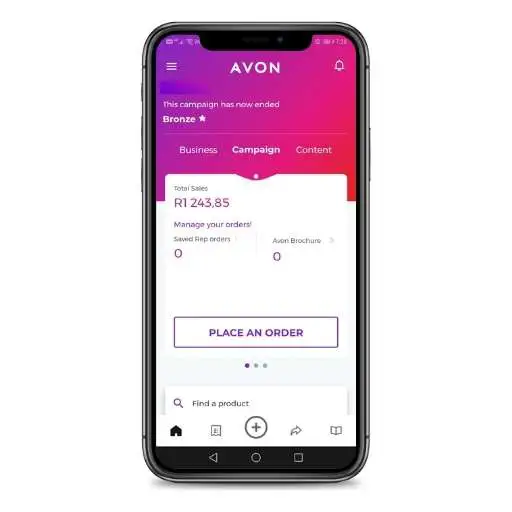
  • Login to the Avon ON app
  • Select the “Place an order” from the dashboard or menu
  • Select “Start or submit order”
  • Select “Start my order”
  • Enter your customers’ product codes and quantities
  • Scroll to the Continue button at the bottom of the screen
  • Scroll past the offers screen & select the Continue button
  • Review your order and select the address & delivery service
  • Enter your number of customers served
  • Submit your order
How to place an Avon order on the app

Other things you can do in the Avon ON mobile app

The Avon mobile app isn’t just for placing orders. You can also use it to:

  • View the current digital brochure
  • Share your brochure with customers
  • Track your orders
  • Access training and business resources
  • View your order history
  • View your offers
  • View your Avon Rewards level

Frequently Asked Questions

Yes. The Avon ON app allows representatives to place orders for their customers.

Yes. The app allows you to save partial orders. You can login at a later stage in the same campaign to add further product codes and submit the order. These are called pending orders. Pending orders are automatically discarded at the end of the campaign.

Yes. The app provides stock availability indicators by way of colour indicators. Green indicates there is available stock, yellow indicates low stock, and red indicates the product is currently out of stock. A grey dot means that product is either no longer available or may be out of stock for longer than 30 days. If your order contains out of stock or discontinued products, you will be prompted to either select it to be placed on your back order, or otherwise delete the item from your order completely.

No, the Avon ON app is exclusively for Avon reps to place their customers’ orders.

Your order is successfully placed when you see the “your order has been placed” page on the app. You will also get an in-app notification that your order has been processed, or where payment is required. These are all indicators that your order has been submitted. They are also followed by SMS notifications to the number on your profile. These actions usually occur within an hour of submitting your order. If you have not received any of the above, it’s best to check your app as your order may still be pending.

Yes, Avon Representatives in South Africa have multiple ordering options, including the Avon ON app, the representative website and SMS ordering.